Family guide: Signing in and "My registrations"
Seattle Little Rangers · October 2026
Download as PDF (0.4 MB)Your account on the website is your email address, and there is no password: each time you sign in, the website emails you a code of 8 digits. Signed in, you can see the events you have registered for, and member families can see their Member ID and Sports Carnival tickets.
Signing in
-
Press Sign in at the top right of the website (on a phone, open the menu at the top right first).
-
Enter your email address and press Send code.
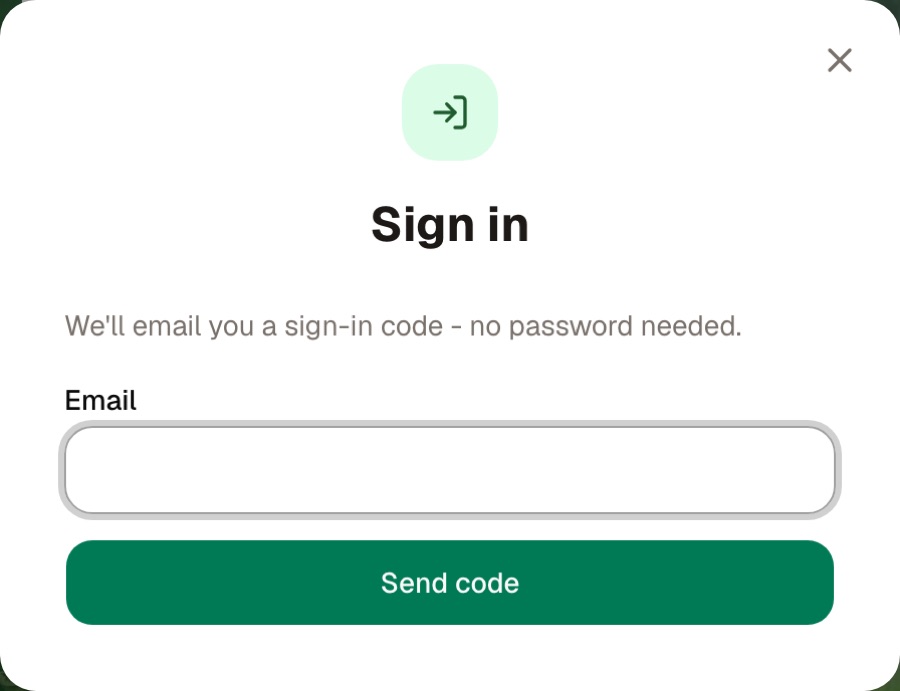
The sign-in window -
Open your email, type the 8-digit code into the boxes, and press Sign in.
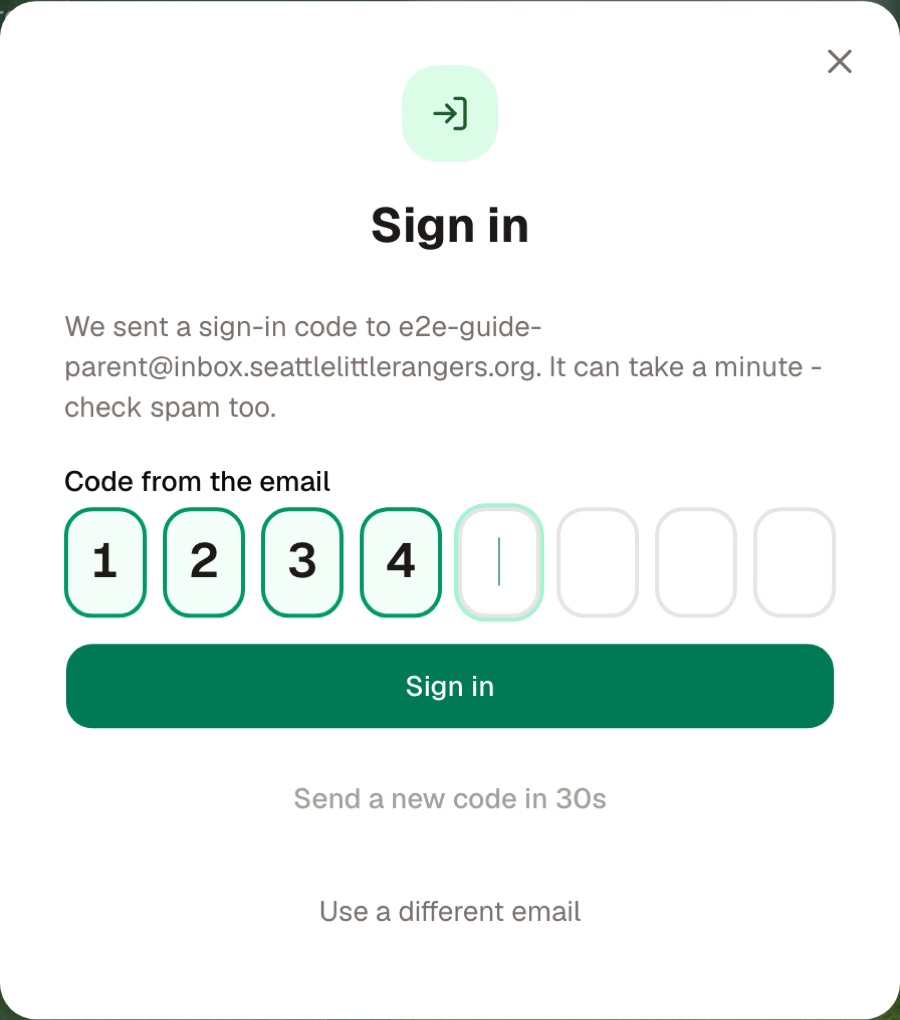
Typing the code
Sign in with the email you registered for events with, or you won't see those registrations. If no code arrives within a few minutes, look in your spam folder; if you typed the wrong address, press Use a different email and start again.
If you chose "Save your details for next time?" after registering, this is also how you sign in afterwards.
My registrations: the events you signed up for
Once you are signed in, My registrations appears at the top right (in a narrow window, just a ticket icon). It lists every event this account has registered for, with upcoming ones first:
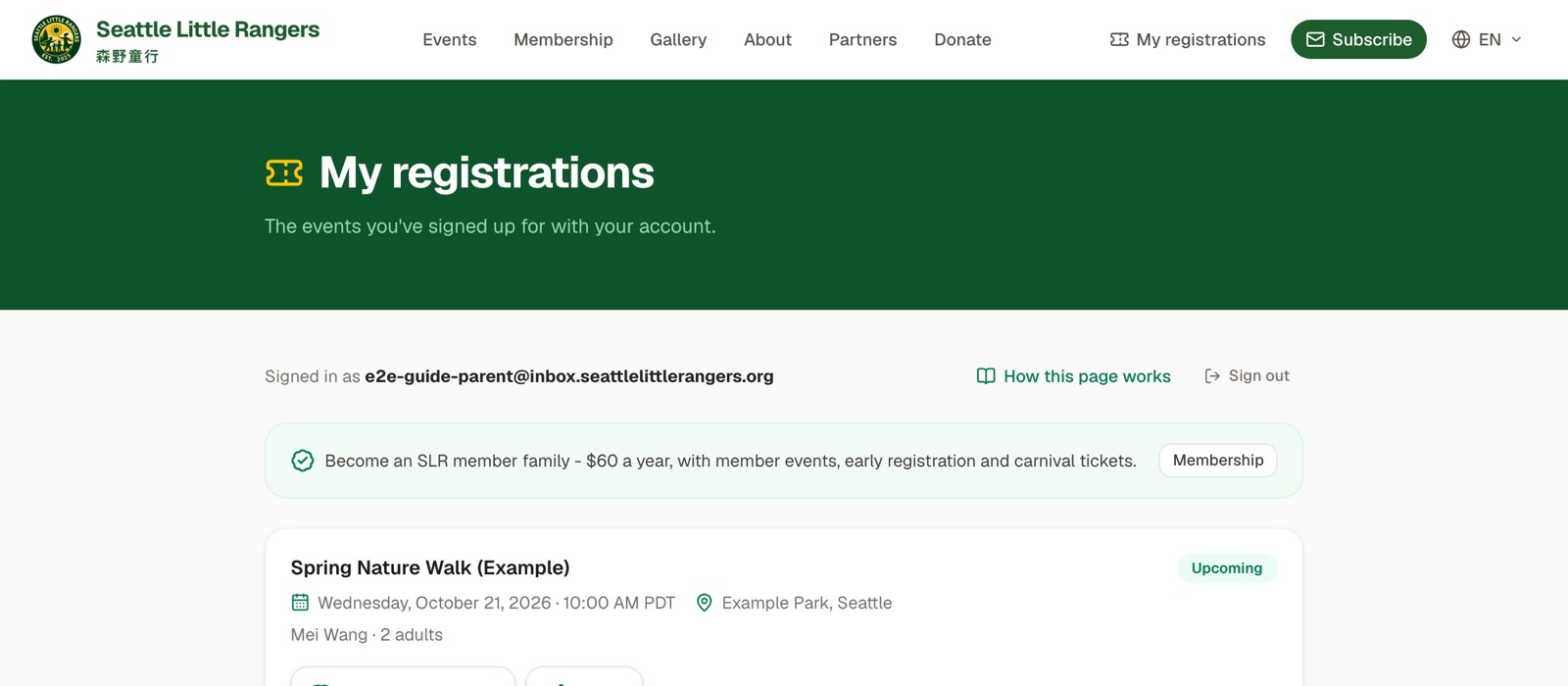
- Events you registered for with this account, or saved to it after registering, are all here;
- tickets bought on Zeffy with the same email are here too;
- when you register while signed in, your name, email and phone are filled in for you and the registration is saved to your account.
Under each event that is still to come:
- Add to calendar puts it in Google Calendar, or on an iPhone, Mac or Outlook calendar;
- Share sends the event to a friend, or copies its link;
- Cancel my registration, if you can't come any more: your place goes to another family. For tickets bought on Zeffy, or member tickets, email us instead and we'll sort it out.
Member families
For a member family, the top of My registrations is the membership card:
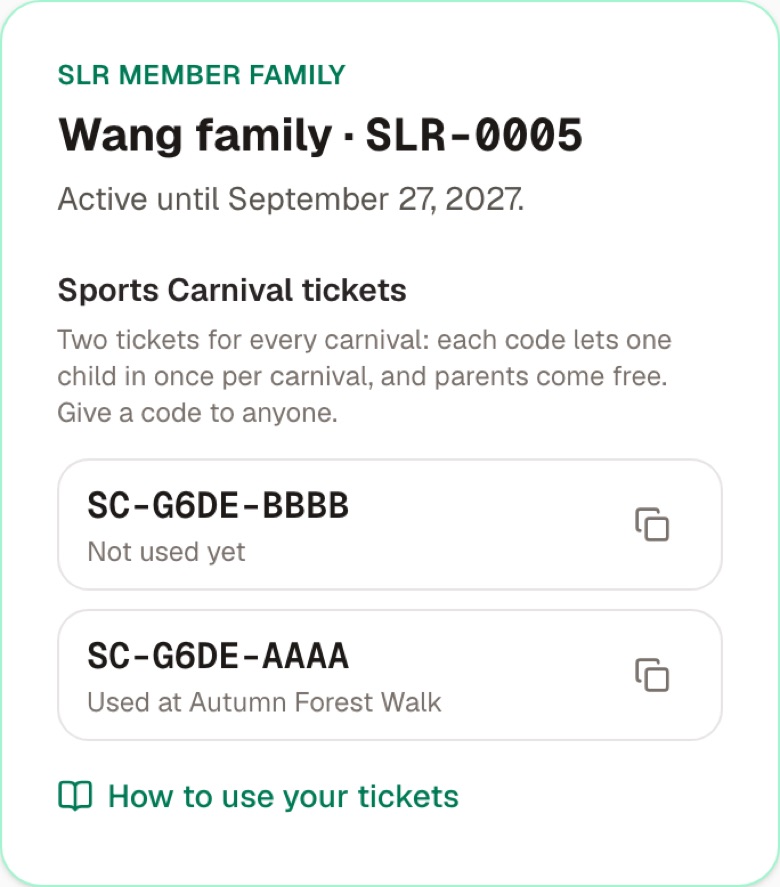
- your Member ID (such as SLR-0001) and the name we call your family;
- the date your membership runs until, or that your 12 months start at your first event;
- your two Sports Carnival ticket codes, which work at every Carnival, and where each has been used. The copy button beside a code copies it, ready to send to a friend.
When the membership is close to its end, or past it, the card has a Renew button. For everything about membership, see Becoming an SLR member family.
A new phone or computer, and signing out
- On a new phone or computer, sign in with the same email and your registrations are all there.
- Sign out is on the My registrations page. On someone else's computer, sign out when you finish.
Common questions
Can both parents sign in with their own email?
Each email is its own account, and shows what was registered with that email. A member family can ask an admin to add the second parent's email to the membership; then either email shows the membership card.
I registered, but it isn't under My registrations?
You most likely registered with a different email. Try signing in with that one; if it still isn't there, email SeattleLittleRangers@gmail.com and ask us.